 TetherInvert
The window#
Everything happens in one window. Open it from the app, or with tetherinvert gui.
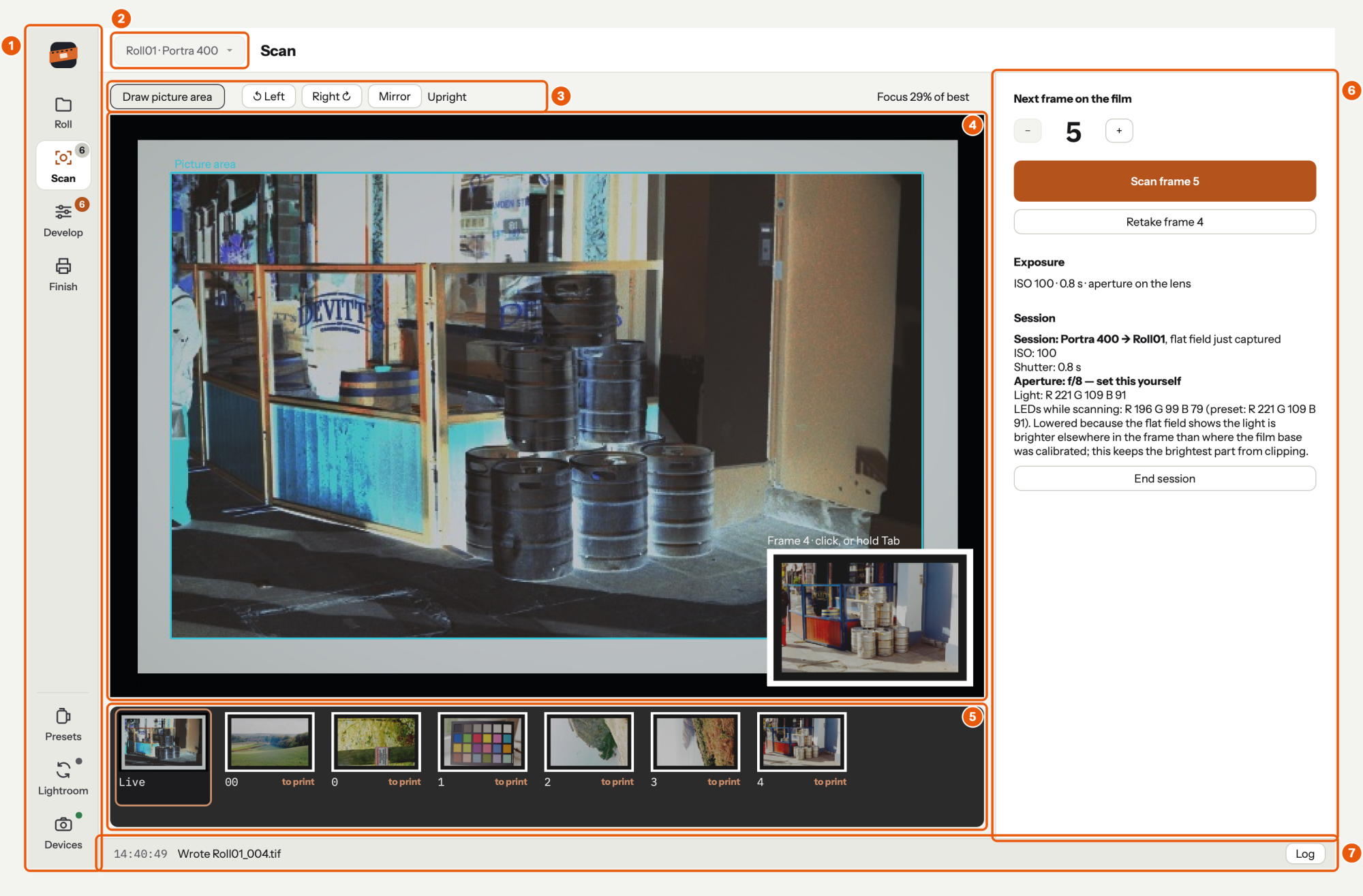
| Part | What it is for | |
|---|---|---|
| 1 | Rail | The steps of a roll, and at its foot Presets, Lightroom and the devices (below). |
| 2 | Roll picker | The roll you are working on, with its preset: Roll01 · Portra 400. Switches to another roll in the folder, or to a new one. |
| 3 | Live view tools | Draw picture area, and turning or mirroring what the camera sees. While calibrating also Draw film base. |
| 4 | Live view | What the camera sees, under a dim framing light. The frame just scanned shows in its corner. |
| 5 | Strip | Live, then every frame of the roll. Click a frame to develop it. |
| 6 | The step's column | Here Scan's: the next frame's number, Scan, the exposure and the session. Develop has its corrections here. |
| 7 | Status bar | The last thing that happened, with its time, and Log. |
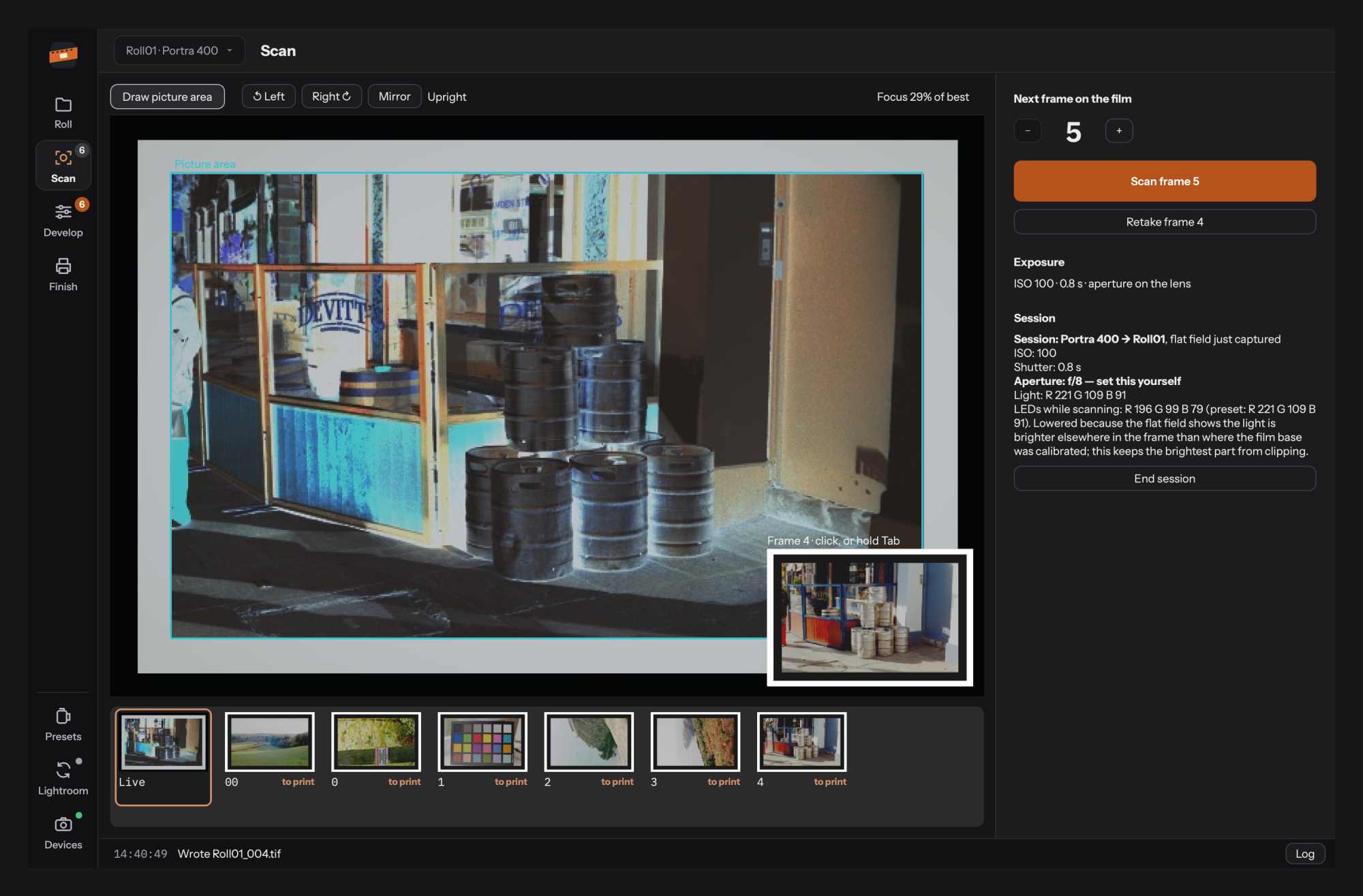
The window follows your system's appearance, light or dark:
The rail#

The steps of every roll, top to bottom. Each can be opened at any time: you can develop a frame during a session, or go back to Roll.
| Step | What you do there | Page |
|---|---|---|
| Roll | Name the roll, fill in its metadata, start or continue its session | Starting a session |
| Scan | Scan the frames | Scanning |
| Develop | A frame large, its base and corrections | Developing |
| Finish | Prints, the contact sheet, the roll's metadata and files | Finishing the roll |
- Scan's count is the number of frames scanned.
- Develop's count, in orange, is the number of frames due for a print. No count: every print is up to date.
At the foot, what you need now and then:
- Presets: your film presets, and calibrating a new one (Calibrating).
- Lightroom: opens the roll in Lightroom Classic (Lightroom Classic). Its dot is green while Lightroom watches the roll's folders, grey otherwise.
- Devices: camera and light (Your rig). Its dot is green when both are connected and red when one is missing, wherever they are needed: on Roll and Scan, while calibrating, and on every step during a session. On Develop, Finish and the list of presets, which need neither, it is grey.
The roll picker#
The button above every step but Presets (2 in the first picture) lists the rolls in the folder, each with its preset, and New roll… (the first free name, on Roll). Picking one switches every step to that roll; you stay on the step you are on. During a session it stays on the session's roll. See Continuing a roll.
Moving around#
- Click a frame in the strip to develop it: Develop opens.
- ← / → go to the previous and next frame, ↑ / ↓ through the frame's bases.
- Esc or Home goes back to the live view on Scan. While calibrating it stays on Presets, where the live view is.
- Space scans the next frame from any step while a session runs; Scan opens to show it.
- Hold Tab to look at the frame just scanned; let go to come back.
The log#
The status bar shows the last line, with its time. Log opens every line since the window opened, over the bottom of the page.

- A warning turns the line red for eight seconds, or until a line that is not a warning follows it.
- Log keeps a red count of the warnings you have not seen, until you open it.
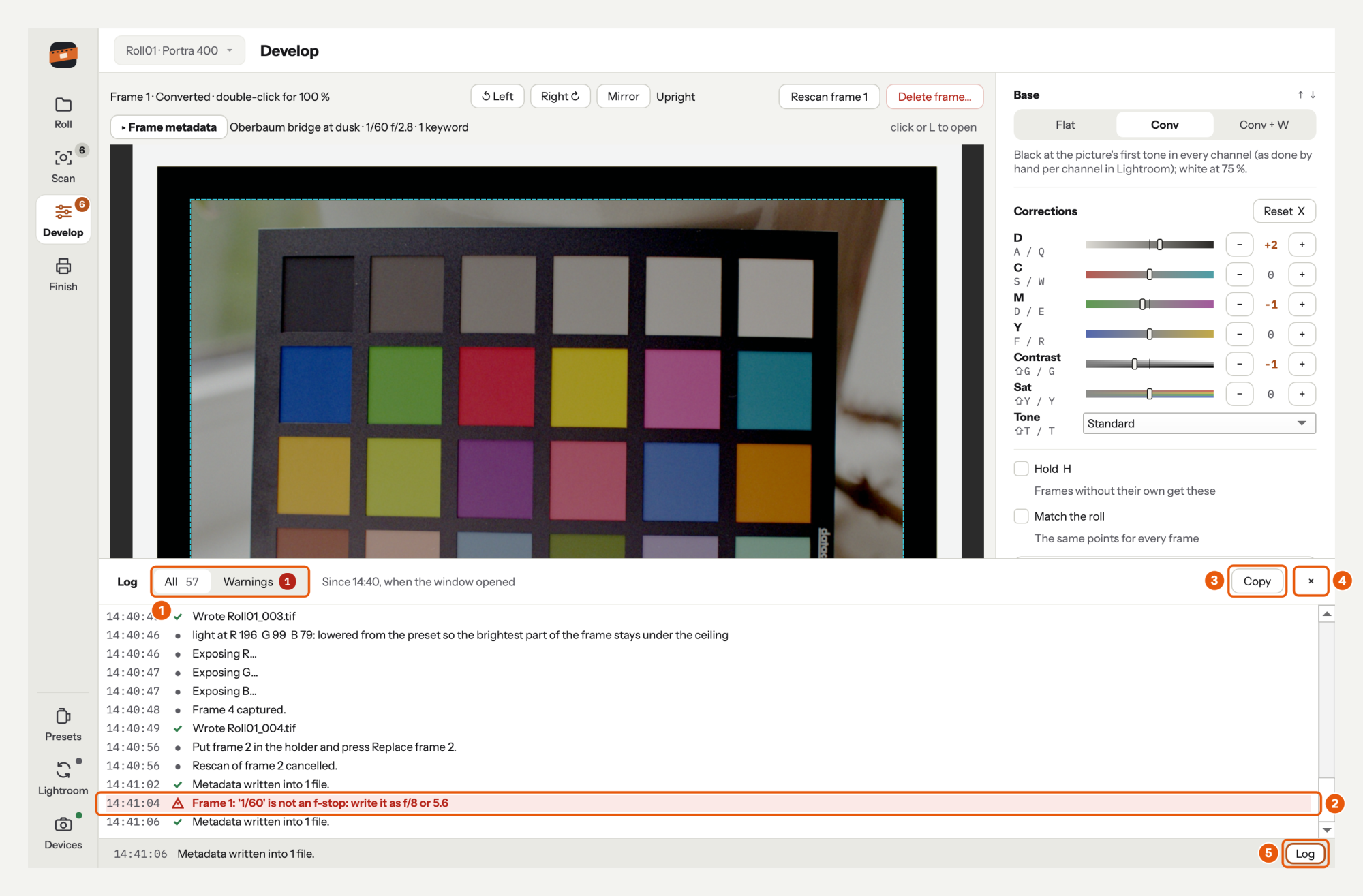
- All or only the Warnings, each with how many there are.
- A warning: in red, with a triangle. A file written has a tick.
- Copy puts the lines shown on the clipboard, with their times: paste them into an issue when you report a problem.
- × closes it.
- So does Log, which is outlined while the log is open. It stays open while you work: Space still scans, Esc still goes to the live view.
Lines can be selected with the mouse and copied with ⌘C, too. The log keeps the last 1000 lines.
The Help menu#
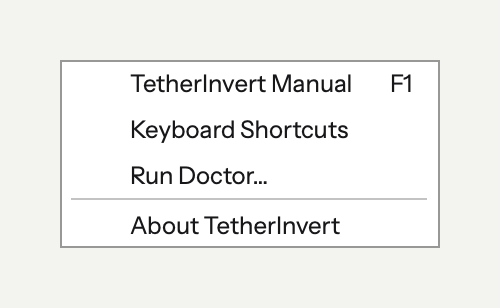
- TetherInvert Manual (⌘? on a Mac) opens this manual in your web browser.
- Keyboard Shortcuts opens the drawing below in a window of its own, to keep beside the main one.
- Run Doctor… checks what is installed and connected, takes one test shot without changing any camera setting, and says whether the file decodes (see When something fails). Copy report puts the report on the clipboard, with the details from About, ready to paste into an issue; Show test shot opens the folder that keeps the shot. It can be run whenever the window is not scanning or calibrating.
- About TetherInvert shows the version and the build, and what TetherInvert runs on (system, Python, Qt, camera library, RAW decoder). Copy details puts all of it on the clipboard: paste it into an issue when you report a problem. On a Mac, About is in the TetherInvert menu, next to the Apple menu.
Keyboard shortcuts#
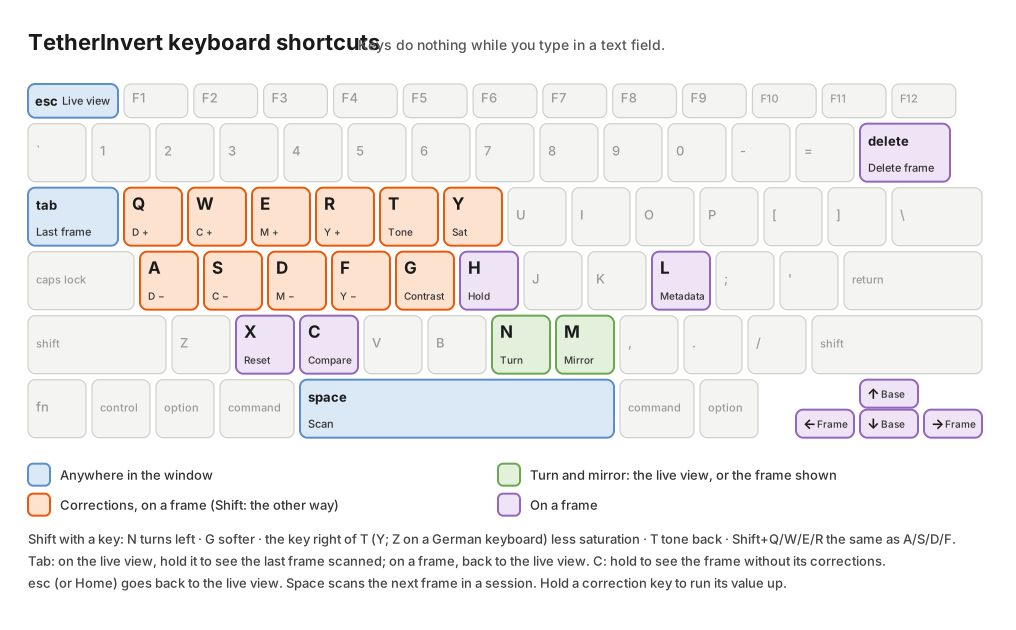
Blue keys work anywhere in the window, green ones turn and mirror what is shown, orange and purple ones work on a frame you have opened. None of them work while you are typing in a text field.