 TetherInvert
Your rig#
The camera#
| Setting | Value |
|---|---|
| USB mode | PC Remote (not Mass Storage or MTP) |
| Exposure mode | M |
| Image quality | RAW only (RAW+JPEG hands over the JPEG) |
| Save destination | Computer only, if you do not want a copy on the card. TetherInvert asks the camera for this; some bodies take it only from their own menu. Sony A6700: MENU → Network → Cnct./PC Remote → Remote Shoot Setting → Still Img. Save Dest. → Destination Only. tetherinvert status says what the camera does. |
| ISO, aperture | Set them yourself; calibration leaves them alone. Auto ISO is switched to the lowest fixed ISO. A lens without electronic contacts: the f-stop is asked for at calibration and you are reminded of it in every session. |
TetherInvert controls the camera through libgphoto2, which supports many bodies from Sony, Canon, Nikon, Fujifilm and others.
On macOS the system camera service grabs a free camera and can hold it for minutes. The window keeps the camera for as long as it is open, so prefer it to one-off commands. If the camera reads as in use, unplug and replug the cable and quit Photos, Image Capture and sync clients.
The light#
- Scanlight: the data USB-C port (the other is power only), a power supply of at least 2 A. The window finds it within a few seconds, and shows its LED temperature under Devices.
- Your own light: see Lights: constant, fixed setting, no stray light.
Camera and light are connected separately: the window says which one is missing, and a cable that comes loose costs only that device.
The window#
Devices at the foot of the rail shows what is connected.
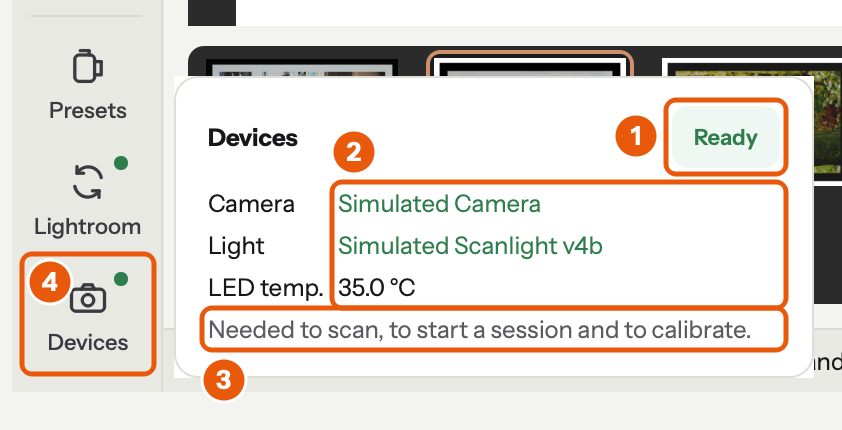
- The chip: Ready, Camera missing, Light missing, Camera and light missing, or Not needed here on Develop, Finish and the list of presets.
- The camera, the light and the light's LED temperature: green when connected, red not connected. With your own light the light reads none: own light.
- What needs them: scanning, starting a session and calibrating.
- The rail's dot: green or red where the devices are needed, grey where they are not.
Checking it#
Help › Run Doctor… shows what is installed and connected, takes one test shot without changing
any camera setting, and says whether the file decodes. Without the window, tetherinvert doctor
prints the same; close the window first then, as only one program can hold the camera.